
Watch a short video tutorial below on how to set Acrobat Reader as the default program for opening PDF files on Windows. Alternatively, follow the steps below the video to do the same.
Steps to make Acrobat Reader or Acrobat your default PDF program:
-
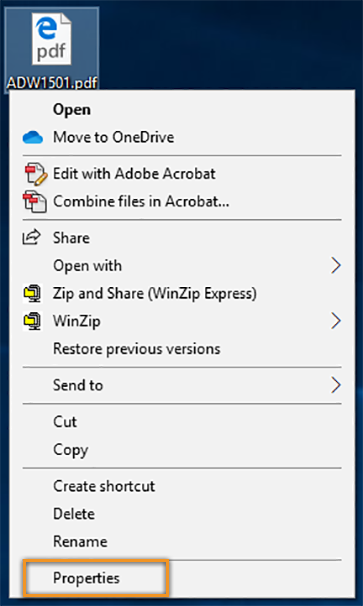
Right-click the thumbnail of a PDF file, and then choose Properties.
-
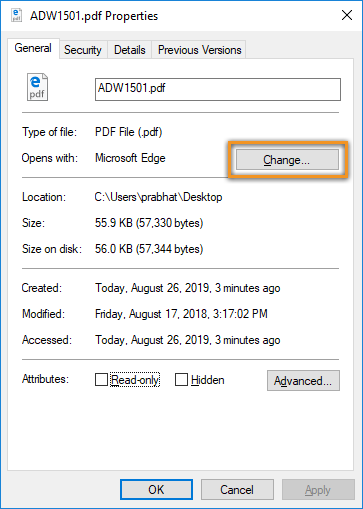
In the file's Properties dialog box, click Change.
 Note:
Note:If your computer settings are managed by a system administrator, you may not see the Change button. Sign in using an administrator account or contact your administrator to get the button enabled.
-
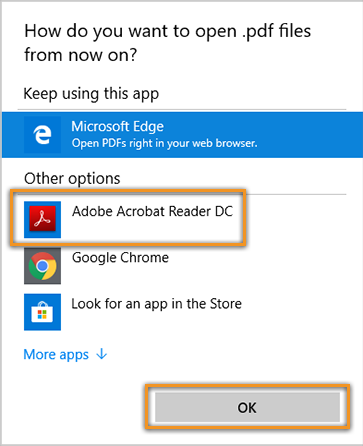
Do one of the following:
If you have Acrobat or both Acrobat and Acrobat Reader, choose Adobe Acrobat and click OK.

If you have only Acrobat Reader, choose Adobe Acrobat Reader and click OK.
-
In the Properties dialog box, click OK.
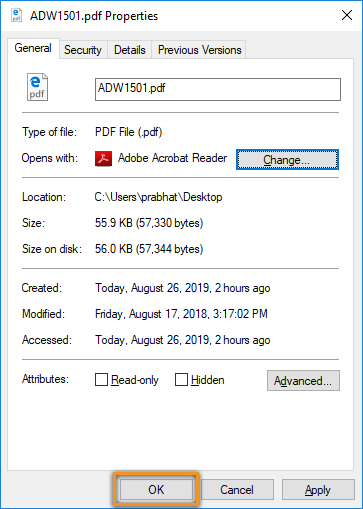
Now, the PDF files open in Acrobat Reader or Acrobat.


Troubleshooting PDF Opening Issues:
If you're still experiencing issues with PDFs not opening properly after setting the default program, try these additional troubleshooting steps:
- Restart your computer to resolve temporary software issues
- Check for and install any available Adobe software updates
- If PDFs are lagging or freezing, verify your computer meets the minimum system requirements
- For browser-related PDF display problems, adjust your browser's PDF viewer settings
- If a specific PDF file won't open or crashes the application:
- Try disabling enhanced security settings in Adobe Reader/Acrobat
- Check if the file might be corrupted
- For persistent issues, try repairing your Adobe installation through Creative Cloud or consider reinstalling the application
Comments
0 comments
Please sign in to leave a comment.