
When someone shares a folder in Microsoft OneDrive, SharePoint, or Teams, you can add a shortcut to the shared folder in your OneDrive to easily find and work with the files. These shortcuts appear in OneDrive on the web, Windows File Explorer, Mac Finder, Teams, and in the OneDrive mobile apps.
Note: The procedures in this article are available only to internal users. You can't add shortcuts to folders that are shared with external users.
In OneDrive, in the navigation pane, select Shared > With you.
Find the folder you want to add, and click the circle in the folder's tile to select it.
Select Add shortcut to My files.
Or you can right-click the folder, and then select Add shortcut to My files.
Tip: In a shared library in SharePoint or Microsoft Teams, you can select Add shortcut to My files to add a shortcut to the entire library or select the specific folder you want to add, and then select Add shortcut to My files. 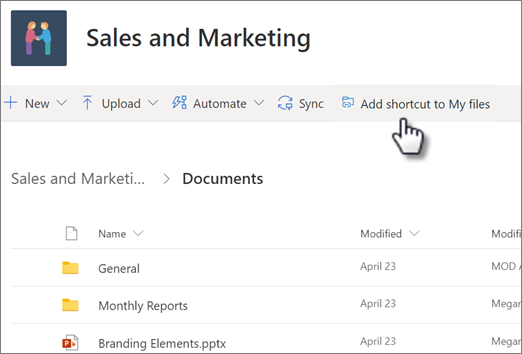
Important: The Add shortcut to My files option isn't available when:
You've already added the folder to your OneDrive, or you have more than one folder selected. (You can't add multiple folders at the same time.)
The item you're trying to add isn't a folder. (Add shortcut to My files isn't available for individual files or for collections of files such as albums.)
You've already added 100 shortcuts in the same document library.
Troubleshooting: If your SharePoint folder links aren't showing up in File Explorer or OneDrive after adding them, try these steps:
Verify you have the correct access permissions to the shared folders.
Restart the OneDrive sync process. From the SharePoint document library in your browser, select Sync, or add the SharePoint site in the OneDrive app to start syncing again.
Check that you're using the correct SharePoint links.
Ensure the folders are properly added as shortcuts to OneDrive, and give time for the initial sync to complete. Shortcuts or files may appear but stay in a syncing state until they're fully downloaded.
If specific files don't open after syncing, restart the OneDrive app or restart your computer and try again.
Comments
0 comments
Please sign in to leave a comment.