
First option
If the CCH Engagement tab is missing from the Excel ribbon, first verify whether the Excel add-in is simply disabled.
Open Excel, then go to File -> Options -> Add-ins.
At the bottom, next to Manage, first check whether the add-in is disabled:
In the Manage drop-down, select Disabled Items, then click Go.
If you see the Engagement add-in (for example, Pfx.Ribbon.ExcelAddIn) listed as disabled, select it and click Enable.
Click OK to return to Excel Options.
Then, still at the bottom of the Excel Options window, select Manage: COM Add-ins from the drop-down box.
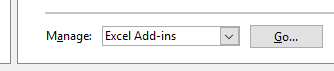
Click Go.
Checkmark the Pfx.Ribbon.ExcelAddIn to make it active, then click OK.
This should restore the Engagement ribbon to its normal location in Excel (and allow it to appear on the Quick Access Toolbar).
If you see a popup when opening an Excel file that references the Engagement add-in (for example, prompting to Update), allow the update to complete. Open Excel and confirm whether the Engagement tab appears on the ribbon.
If that does not work, try a reinstall with the below instructions.
Second Option
Close all applications (INCLUDING EXCEL)
Go to add or remove programs
Remove Pfx.Ribbon.ExcelAddIn

Reinstall add-in by going to C:\Pfx Engagement\WM
Double click to run Pfx.Ribbon.ExcelAddIn

Reboot or log off (required)
Comments
0 comments
Please sign in to leave a comment.