
Save a message as a file on your computer or in the cloud
-
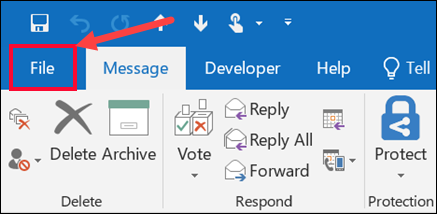
Double-click to open the message you want to save, and on the File menu, click Save As.
- Click on "Save as Adobe PDF"
Alternative method when direct PDF save option is unavailable
- Open the email you want to save
- Select Print (or press Ctrl+P)
- Choose "Microsoft Print to PDF" as the printer
- Click Print and select where to save the PDF file
Troubleshooting PDF saving issues
If you experience problems with PDF files not saving correctly:
- Open Outlook and go to the Acrobat Add-in tab
- Change conversion settings
- Uncheck the 'Output Adobe PDF Portfolio when creating a new PDF file' option
What to do if Outlook is not responding
If Outlook is not responding and you're unable to save your workpapers:
- Try changing your server connection, which can often resolve connectivity and saving problems
- Contact your IT support team for assistance in switching to an alternative server if you cannot resolve the issue independently
Note: If you see a cloud icon on your saved PDF files, this indicates the file is backed up to cloud storage. The file is stored online and may need to be downloaded before opening.
Comments
0 comments
Please sign in to leave a comment.