
Set work hours and location from Settings
When you set this up, others will see what days you're working remote and what days you'll be in the office. You also have the option to share your exact work location to others, for example, if your organization has multiple buildings, you can specify exactly which building you'll be in.
Set your recurring work plan in Settings. You also have the option to share your building location with others.
-
Select Settings > Calendar > Work hours and location.
-
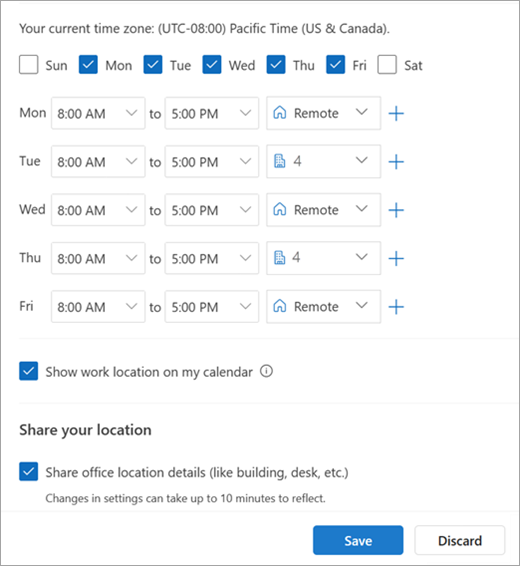
Select checkboxes for the days you want to set.
-
Use the dropdowns to select your work hours and your location each day.
Share which building you're working from and where you'll be sitting.
Select the Share office location details checkbox.
Uncheck the Share office location details checkbox if you don't want to share specific location details.
Anyone who views your card will only see you as in-office or remote.
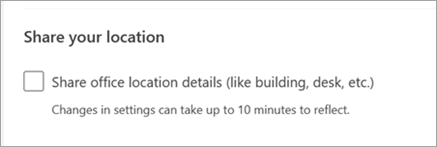
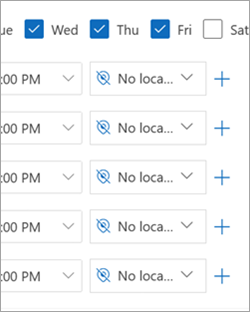
If you don't want share any details about where you'll be working, do the following:
Uncheck your previous location to see No location, and uncheck Share office location details.
-
When you're finished, click Save.
Comments
0 comments
Please sign in to leave a comment.